# How To Backup Your Files To AWS S3
[Paul Knulst](https://www.paulsblog.dev/) in [Programming](https://www.paulsblog.dev/tag/programming/) • Dec 1, 2021 • 4 min read
This article will give you a quick visual enhanced tutorial covering every step that is needed to save your valuable files to AWS S3. It will guide you on how to back up your data to AWS S3. S3 is an abbreviation of **Simple Storage Service** and provides multiple ways to upload a file or folder.
1. Upload using Drag and Drop
2. Upload using AWS CLI in the terminal.
From the above-mentioned ways, I will explain How-To upload using the AWS CLI
Prerequisite
------------
### Amazon AWS Account
To create a FREE AWS account go to [https://aws.amazon.com/free/](https://aws.amazon.com/free/) and create your account. To follow this tutorial you need to have an account.
### S3 Bucket
S3 will be used to store your backup. An S3 bucket can be created at [https://s3.console.aws.amazon.com/s3/home](https://s3.console.aws.amazon.com/s3/home). You have to choose a bucket name and can keep the default values except for encryption.
**__I would suggest that you enable default encryption__**
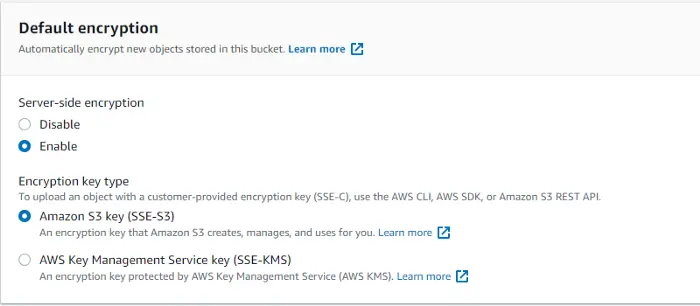
Screenshot of bucket creation taken by the author
### IAM Credentials
To create IAM Credentials to access your S3 bucket open your account menu (top right corner) and click ****Security Credentials****
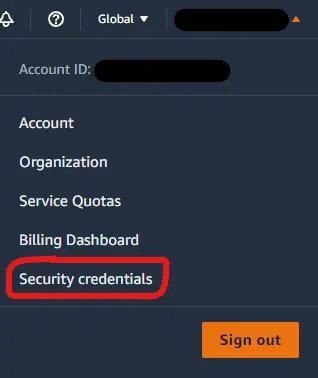
Screenshot of user menu taken by the author
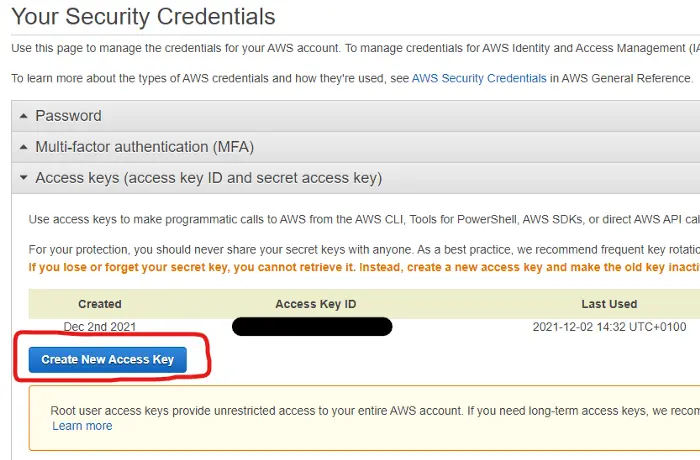
Now switch to Access keys (access key ID and secret access key) and create a new access key by clicking the button
| |
|:--:|
|*Screenshot from AWS S3 bucket security credentials taken by the author*|
Additionally, you can find much information about creating AWS access keys in the Amazon knowledge base: [](https://aws.amazon.com/premiumsupport/knowledge-center/create-access-key/)
Install AWS CLI
---------------
Installing the AWS CLI can be done on Linux (and on Windows in the Ubuntu WSL 2 CLI) with
```bash
sudo apt-get install awscli
```
Configure AWS CLI
-----------------
After the AWS CLI is installed check the version
```bash
aws --version
```
As I created this How-To I was using Windows with this version
|  |
|:--:|
| *Screenshot of AWS CLI version on windows taken by author* |
Now you can set your IAM credentials for your machine. Start the process to enter your credentials
```bash
aws configure
```
Type in your **AWSAccess Key ID**, **AWSSecret Acces Key**, a **default region**, and an **output format**. Confirm every line with ****. It should look like this:
||
|:--:|
|*Screenshot of configuring AWS CLI taken by author*|
Backup your files
-----------------
Now you are ready to back up your files to your bucket. Two important commands can be used: **Copy** and **Sync**
### Copy
**Copy** can be used to copy a file or folder to S3. It will overwrite files if they are already within your bucket. For copying a folder you have to use `--recursive`. The following command will copy a `` to a `DST_FOLDER` in your `YOUR_BUCKET_NAME` within S3.
```bash
aws s3 cp --recursive s3://BUCKET_NAME/DST_FOLDER/
```
### Sync
With Sync you can keep the content of a folder on your machine in sync with the folder within your S3 bucket. The following command will sync your local `SRC_FOLDER` with your `DST_FOLDER` in the S3 bucket `s3://BUCKET_NAME`.
```bash
aws s3 sync s3://BUCKET_NAME/DST_FOLDER/
```
Closing Notes
-------------
I hope you enjoyed reading this article. I hope it can help you to **back up your valuable data** to an Amazon AWS S3 bucket. I would love to hear your thoughts and if you have any questions please contact me.
This article was originally published on my blog at [https://www.paulsblog.dev/how-to-backup-your-files-to-aws-s3/](https://www.paulsblog.dev/how-to-backup-your-files-to-aws-s3/)
Feel free to connect with me on [my personal blog](https://www.paulsblog.dev), [Medium](https://medium.knulst.de), [LinkedIn](https://www.linkedin.com/in/paulknulst/), [Twitter](https://twitter.com/paulknulst), and [GitHub](https://github.com/paulknulst).
* * *
Did you find this article valuable? Want to support the author? (... and support development of current and future tutorials!). You can sponsor me on [Buy Me a Coffee](https://buymeacoffee.com/paulknulst) or [Ko-Fi](https://ko-fi.com/paulknulst). Furthermore, you can become a free or paid member by [signing up to my website](https://www.paulsblog.dev/#/portal). See the [contribute page](https://www.paulsblog.dev/contribute/) for all (free or paid) ways to say thank you!
* * *
Photo by [Mikhail Nilov](https://www.pexels.com/@mikhail-nilov?utm_content=attributionCopyText&utm_medium=referral&utm_source=pexels) / [Pexels](https://www.pexels.com/photo/people-having-a-business-meeting-in-the-office-7988237/?utm_content=attributionCopyText&utm_medium=referral&utm_source=pexels)